Microsoft Windows 10X Intro
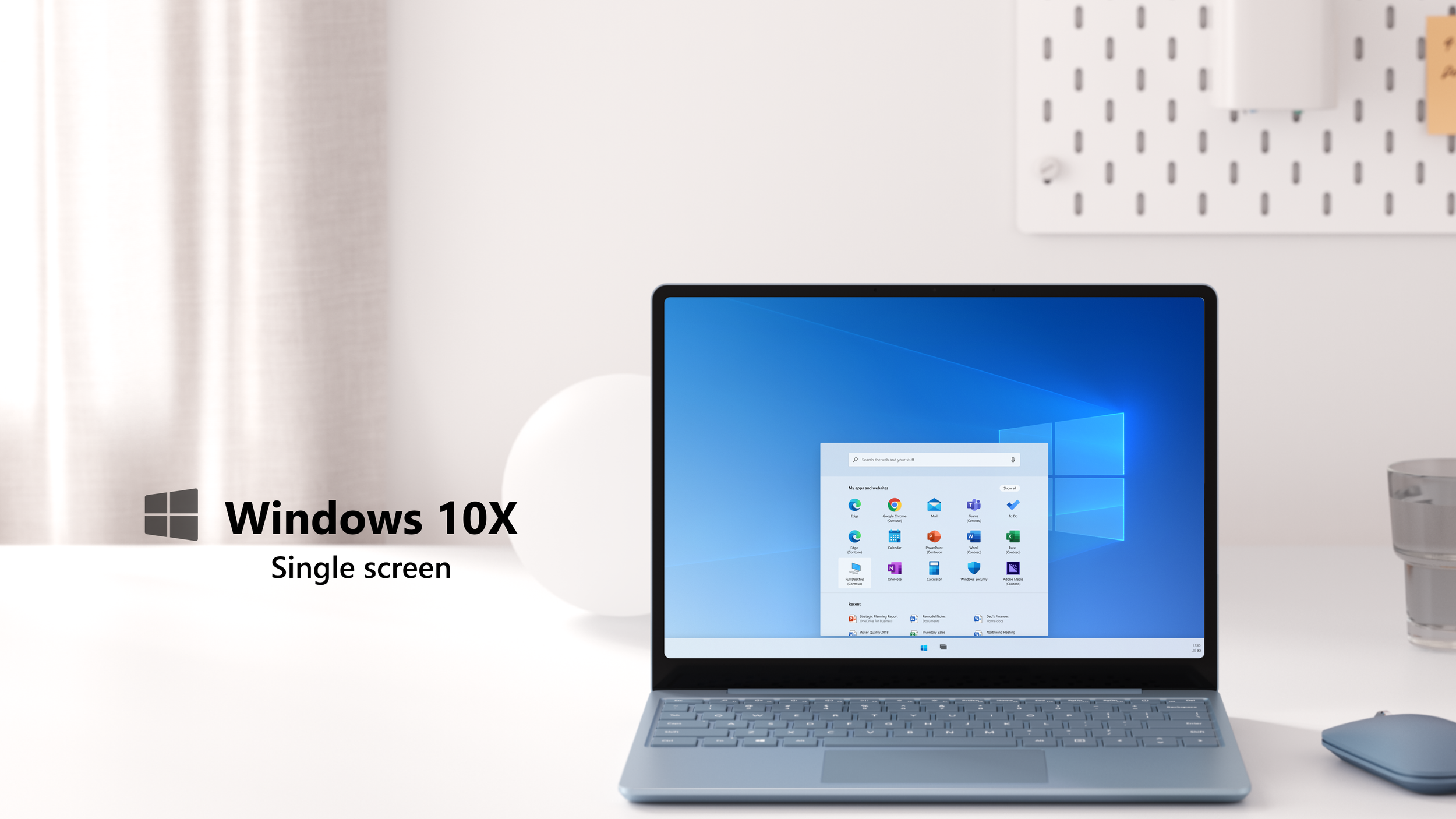
Windows 10X
Background:
Windows 10X operating system was a mobile-like consumer focus product with a emphasis on dual screen interaction. However, we decided to shift to a single screen (laptop posture) with emphasis on commercial business, by bringing the remote apps directly to Windows 10X platform.
Role
My role was to make the remote apps behave like-local apps on Windows 10X single screen. The areas would include: identifying remote apps, launching , windowing, switching, and error cases.
Problem:
Remote apps had a lot of restrictions when running on Windows 10x. Some issues such as: remote apps have to be launched via the remote app client and all the remote apps will run from a single window only. Basically, they can not behave like a local apps. How can remote app run smoothly on Windows 10x?
Target users
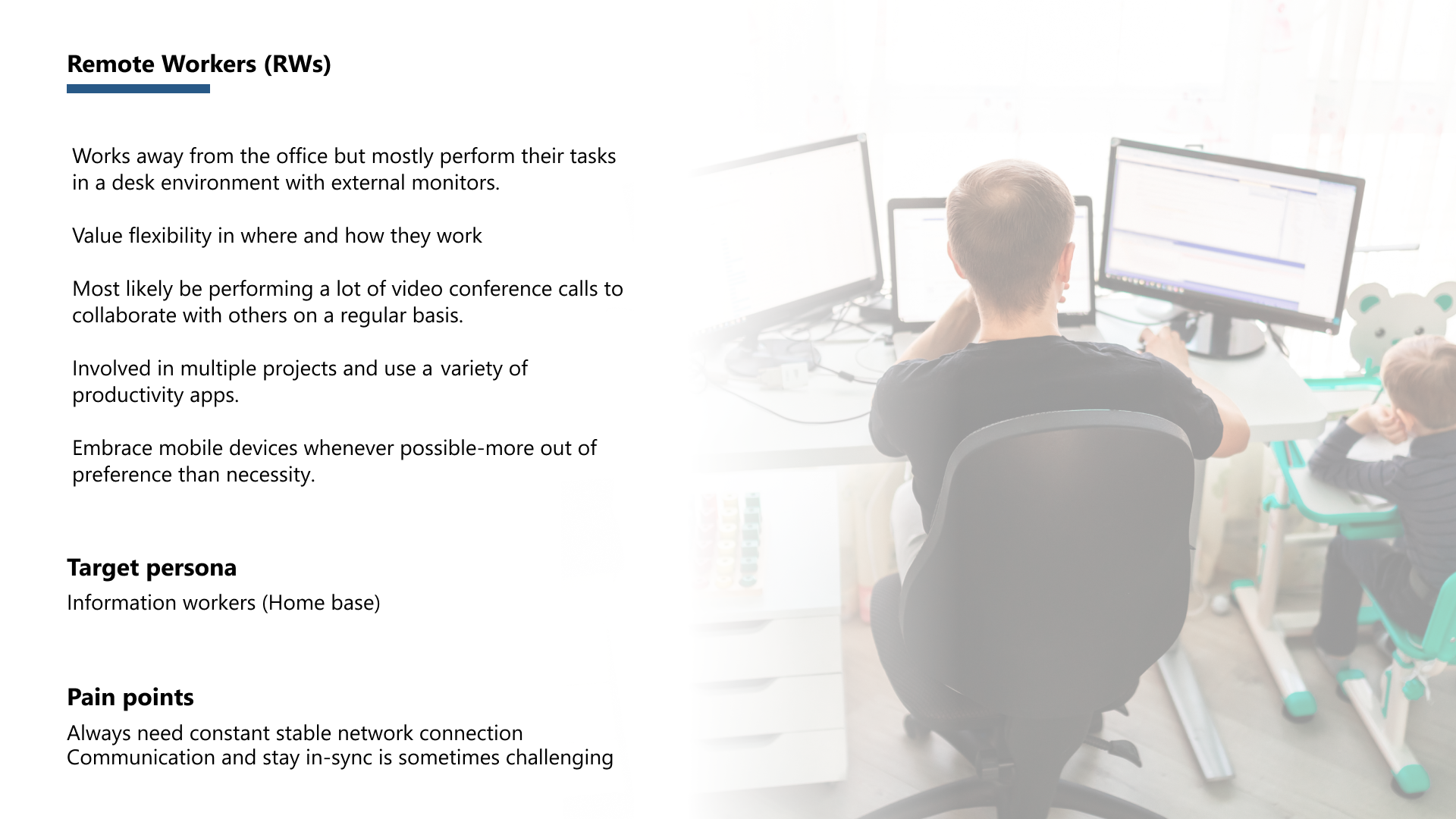
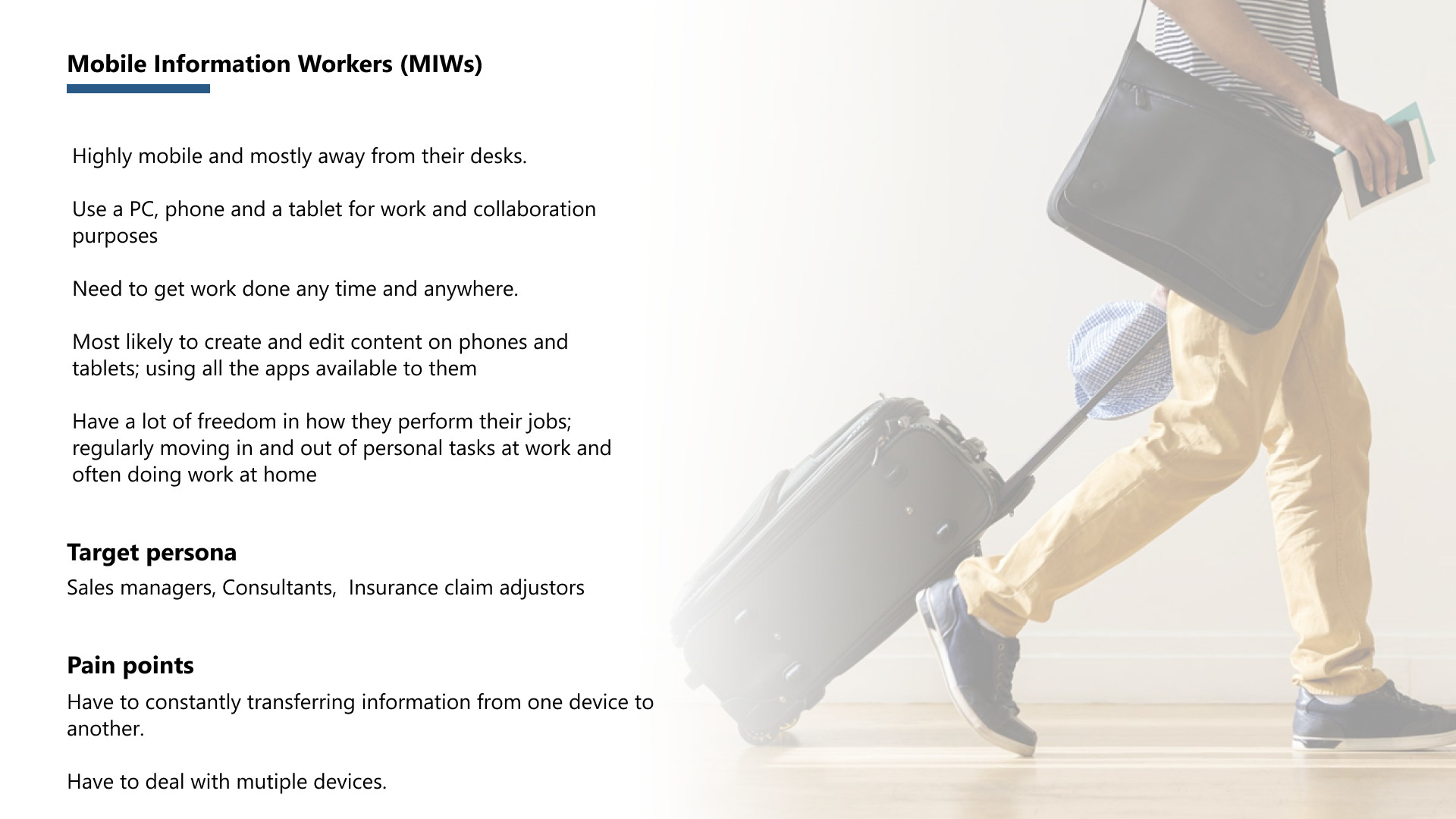
With the commercial audience, we targeted mostly remote workers that would perform their tasks at a desk environment. They would be using a set of remote apps that is setup by their IT admins. The other target is mobile information workers, who are constantly on the go. So, connecting to remote apps would be crucial, as the information they input or extract from the applications needs to be accessible from any location.
Concept explorations
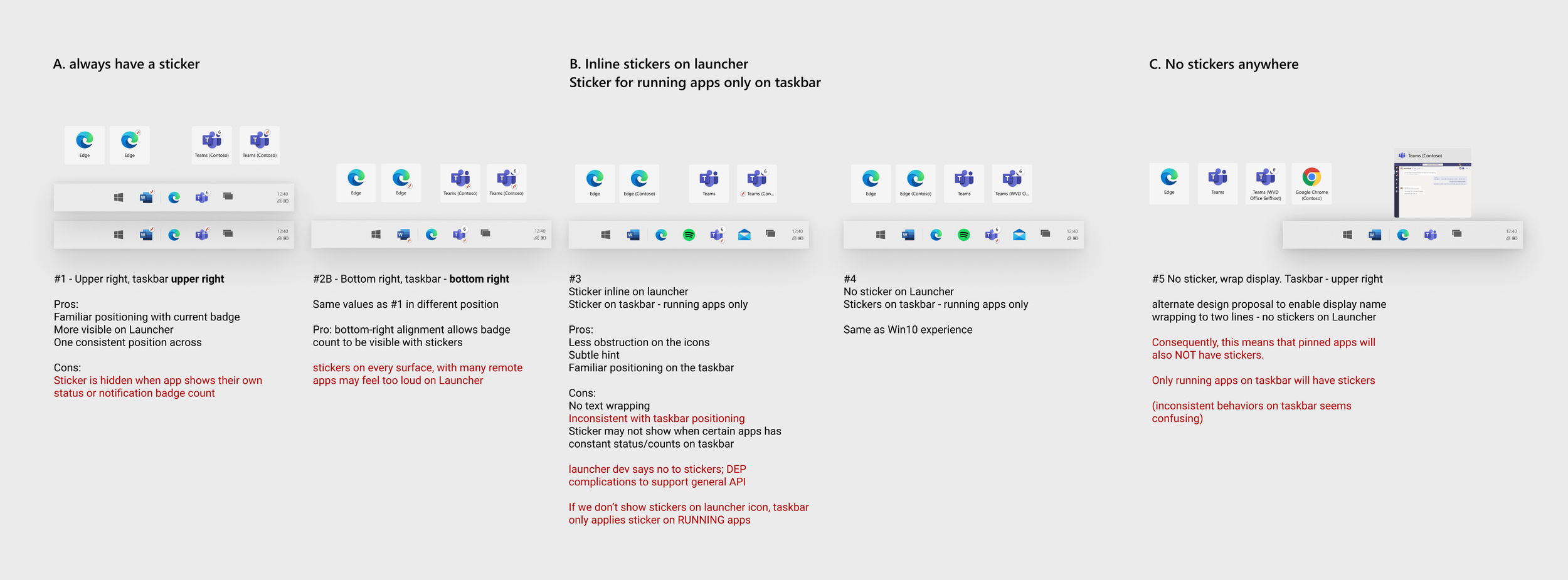
Remote app identifier
Explored various different ways to differentiate remote apps.
Switching between remote and local apps
Explore ways how remote apps can be represented in switching surfaces
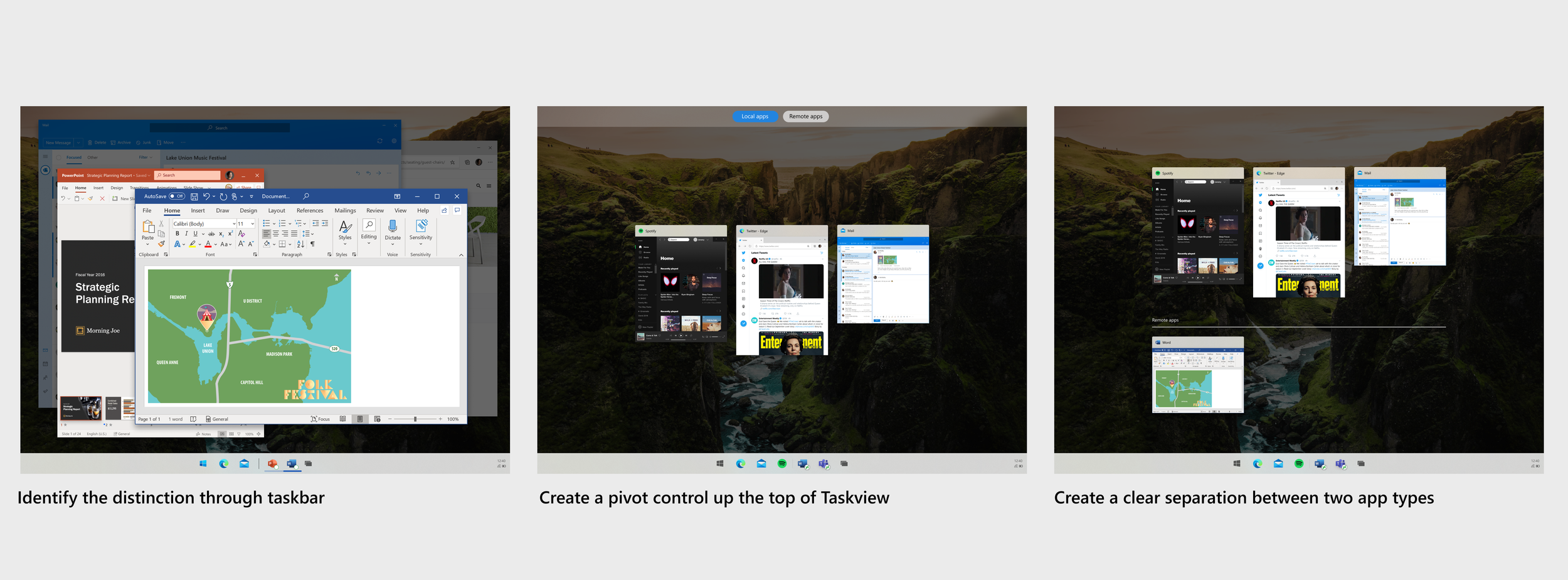
Proposed design solutions
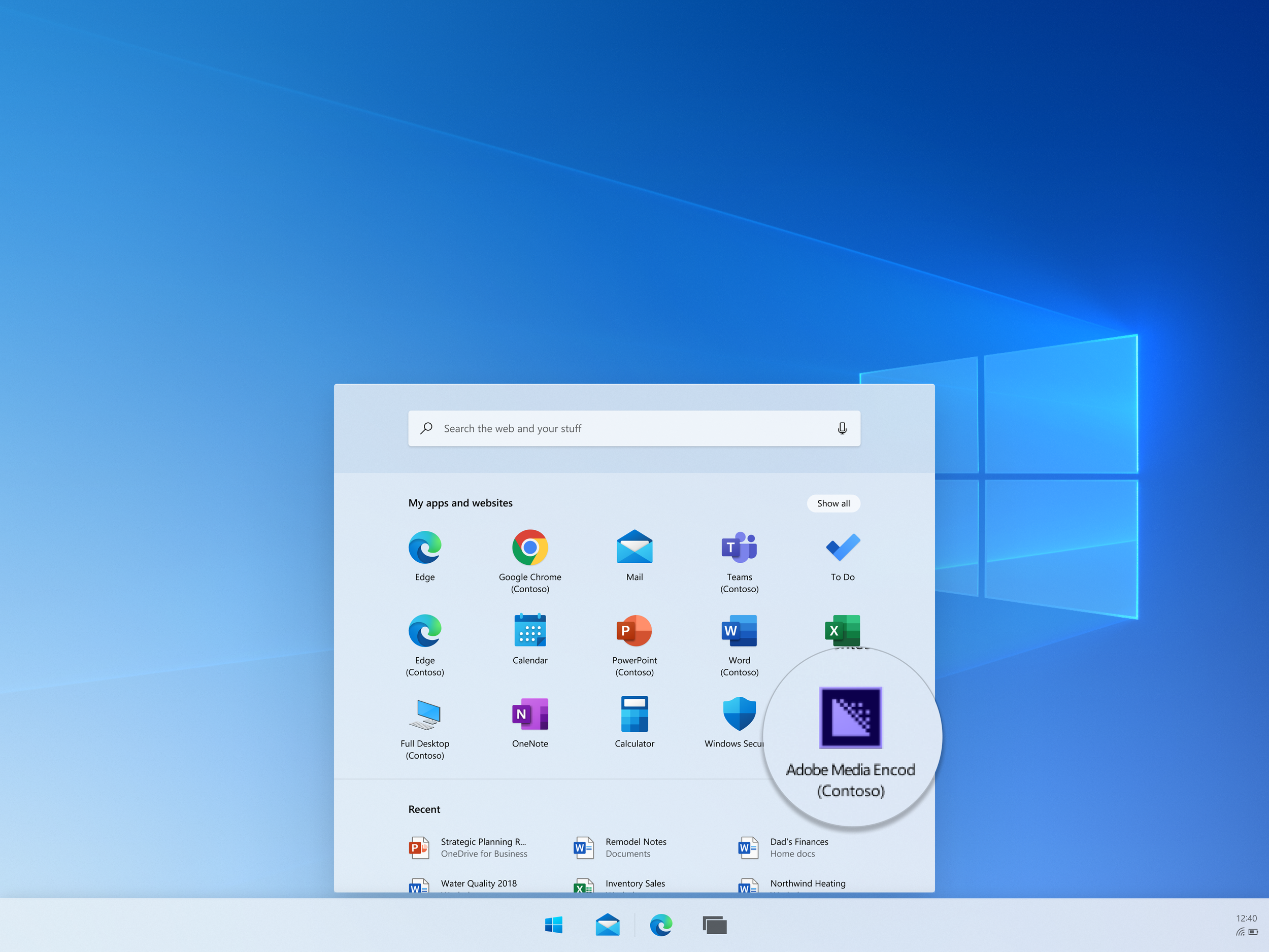
Launching remote apps
I have proposed concept variations to help identify remote apps amongst local apps. With the appended server name being easily recognizable, consistent across all surfaces and also easily implemented solution The user can easily recognize the remote apps on the 2nd line of the app name in the Start menu.
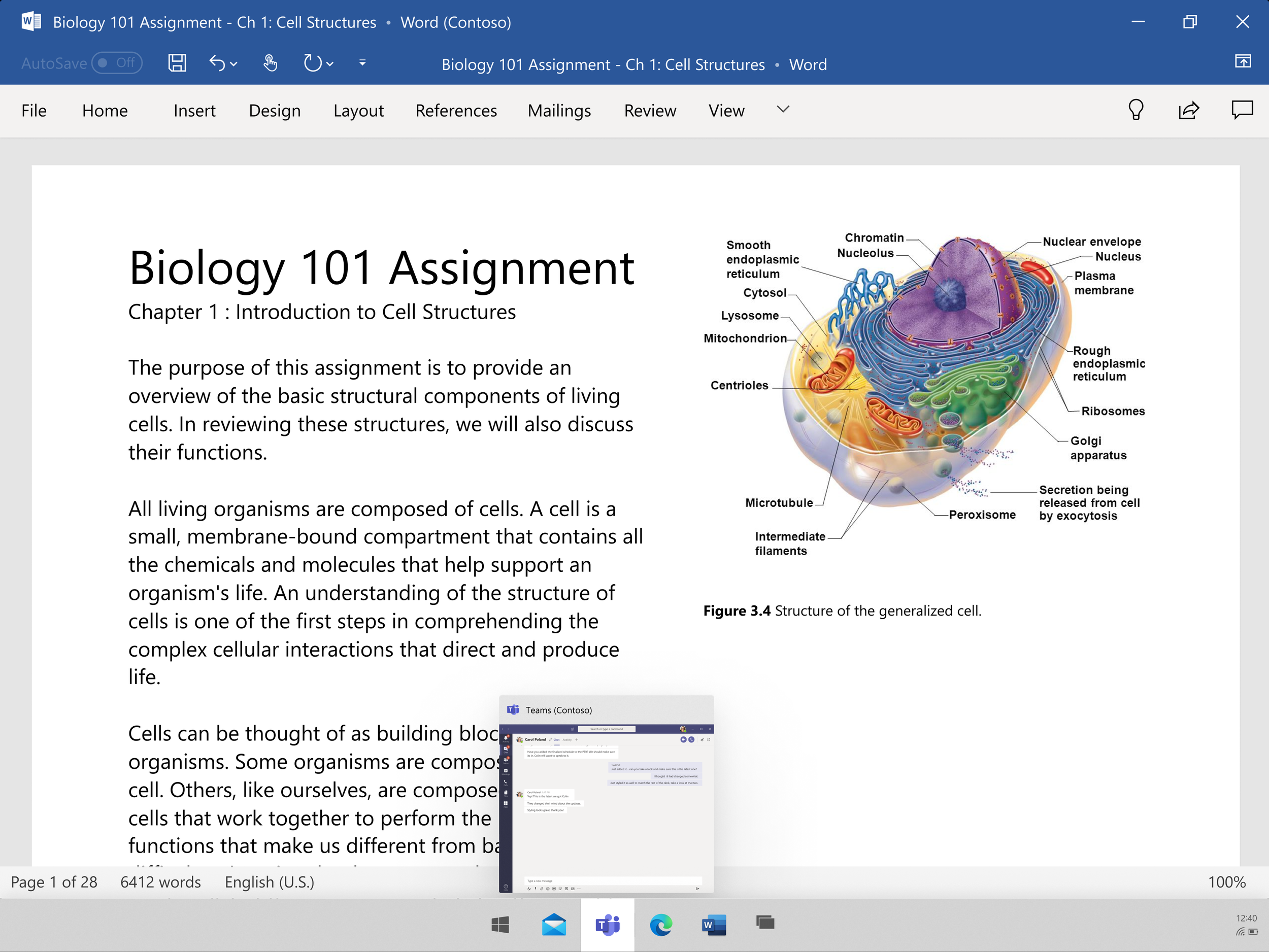
Remote apps on Taskbar
One major change, the remote apps will have its own individual app icons on the Taskbar. They are no longer group together. Also, In order to stay consistent with the appended remote app name in the Start menu, when hover over the app icon, extended UI will show a preview of the remote app with appended name on the title to help identify that it is a remote app.
Remote apps in Taskview switching
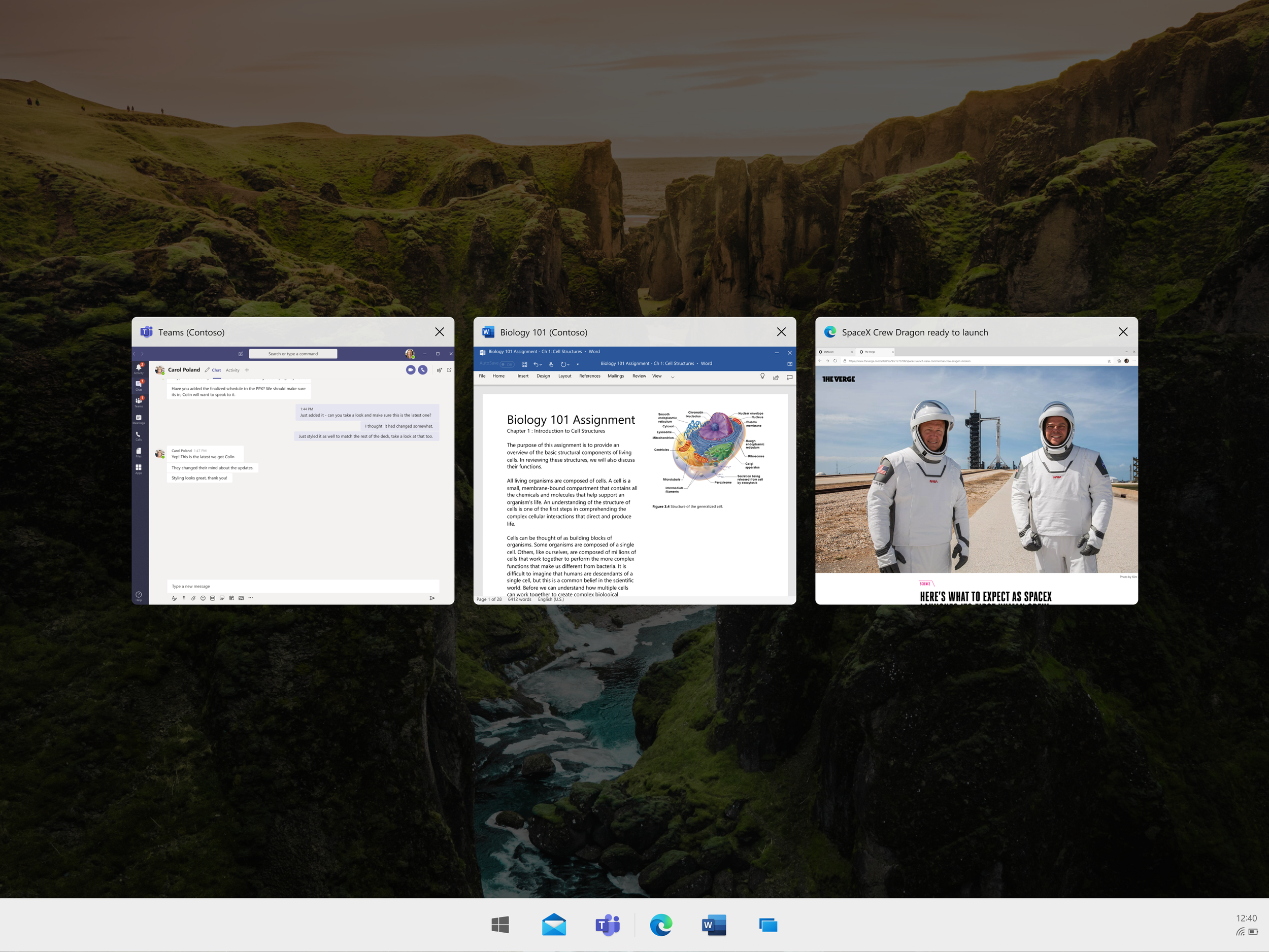
Remote apps showing in Task view as individual windows. Appended server name to help identify as remote apps. Thus, to be consistent with Taskbar and Start menu remote app representation.
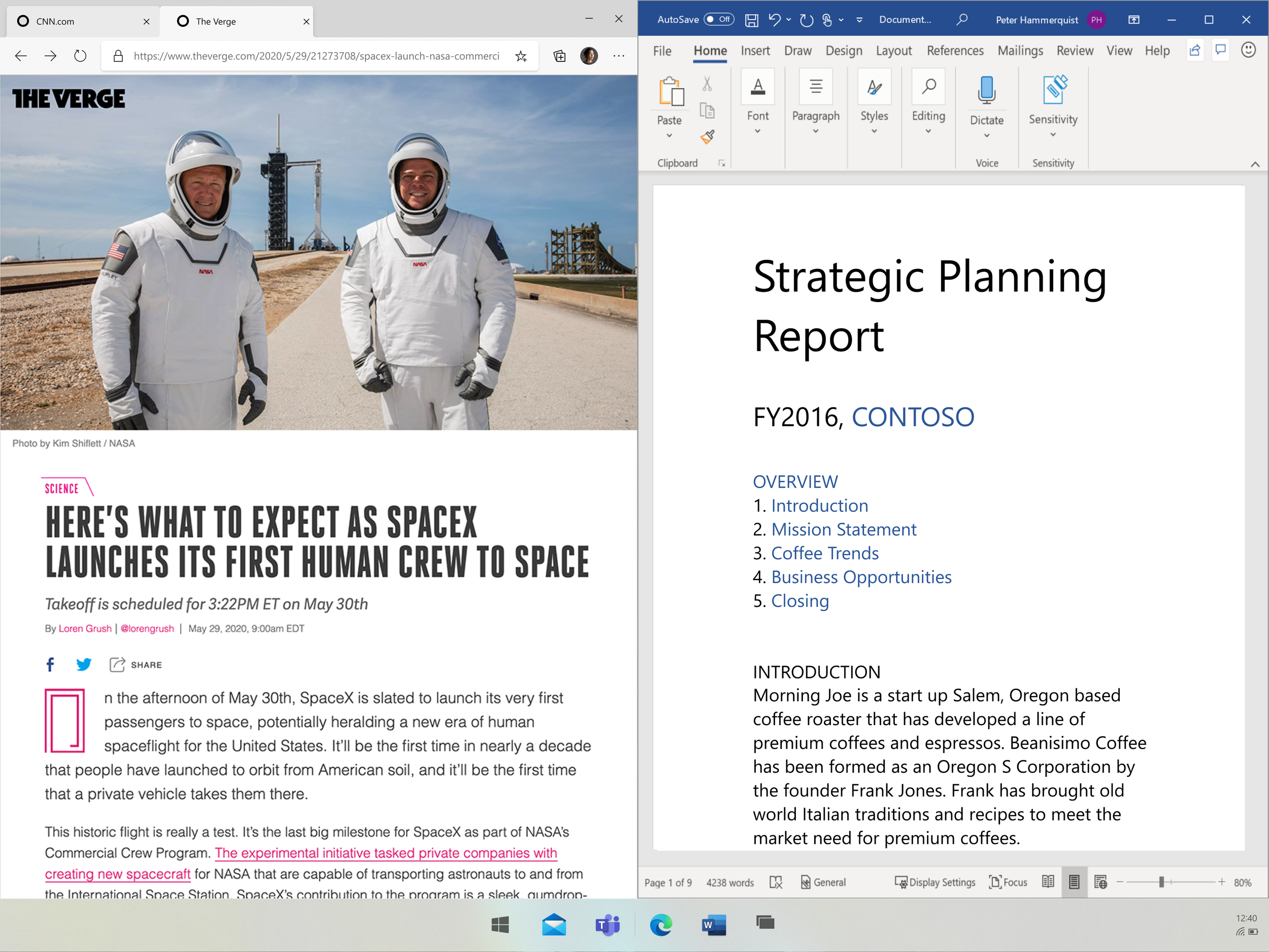
Snapping remote apps
The improvement is to have remote apps able to snap side by side with local or any app window. Break remote app free from its contained window and have them as individual window properties. Acting like a local app window.